 Quai
QuaiWidgets
Widgets sit in the Dock like apps do. Quai includes 32 of them, in 62 styles.
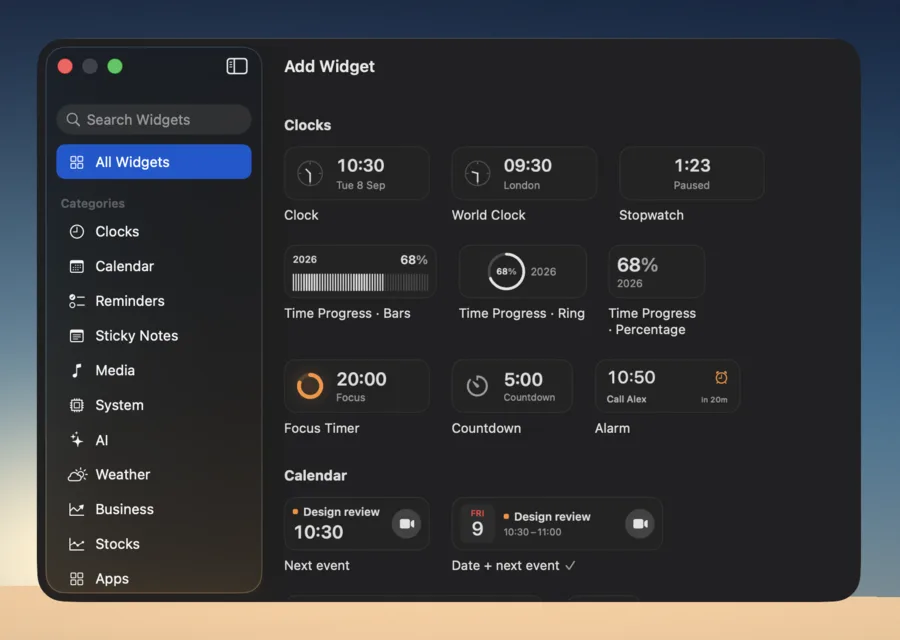
Add a widget
Right-click the Dock and choose Add › Widget…. Pick a category or search, then click a widget to add it where you right-clicked. Most widgets come in a few styles — a calendar with the date only, the next event, or the day’s agenda, for instance.
Use it
Click a widget to open its pane: the full forecast, the day’s agenda, the reminders list. A few widgets act straight away instead: a Shortcut or a Command runs. Press Esc or ⌘W to close a pane.
Change it
Right-click a widget for:
- Edit “Name”… — the widget’s own options.
- Its styles, with the current one checked.
- Expanded Size — for widgets that also have a compact size.
- Duplicate and Remove from Dock.
On a left or right Dock, widgets switch to a narrower layout.
What’s included
| Clocks | Clock, World Clock, Stopwatch, Time Progress, Focus Timer, Countdown, Alarm |
|---|---|
| Calendar | Calendar |
| Reminders | Reminders, Hydration |
| Sticky Notes | Sticky Note |
| Media | Now Playing |
| System | Battery, System Activity, Network Activity, Custom API, AirDrop, Shortcut, Command |
| AI | AI Limits, AI Activity, Claude Sessions, Kilo Sessions, Codex Sessions, Cursor Sessions |
| Weather | Weather |
| Business | Stripe, Paddle, Shopify, Mollie, Revenue API |
| Stocks | Stock, Watchlist |
| Apps | App Folder |
Timers, alarms and the stopwatch keep running even when their tile is hidden or the Dock is off.