 Quai
QuaiDock settings
Open Settings from the menu bar icon, with ⌘,, or with Dock Settings… in any of the Dock’s menus.
General
- Show Quai Dock — turns the Dock on or off. The menu bar icon stays either way.
- Show Quai in the menu bar — hides Quai’s icon. Open Quai again from Applications or Spotlight to come back to Settings.
- Next event in the menu bar — your next meeting and when it starts; click it for today’s and tomorrow’s events, with Join. With Look ahead 24 hours, once today is clear it shows the next event within a day, like tomorrow morning’s first meeting.
- Launch at login — opens Quai when you log in.
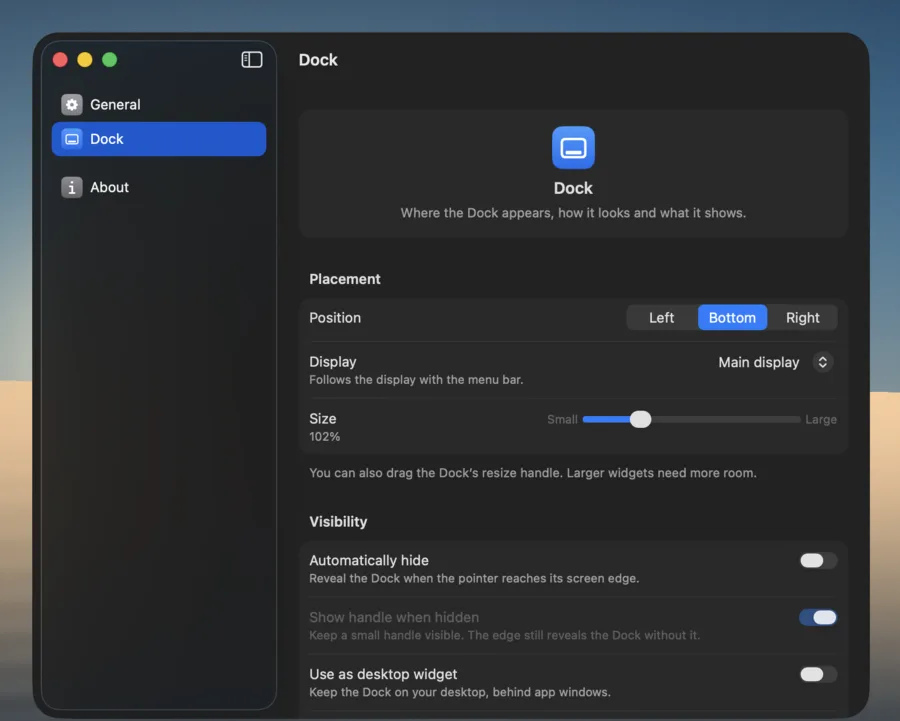
Dock
Placement
- Position — Left, Bottom or Right.
- Display — the main display (the one with the menu bar), or a display of your choice.
- Size — from 50 to 150%. You can also drag a divider in the Dock.
Visibility
- Automatically hide — the Dock appears when the pointer reaches its edge. Show handle when hidden leaves a small handle to click.
- Use as desktop widget — the Dock stays on your desktop, behind your windows, and Apple’s Dock comes back.
- Touch the screen edge — a few more pixels: the Dock sits right against the edge, square where it meets it, instead of floating a little above it. Windows kept clear of it come right down to it.
- Keep windows clear of the Dock — expanded windows leave room for it. Needs Accessibility, and is off while the Dock hides automatically or sits on the desktop.
Magnification
Enlarges apps under the pointer, up to twice their size, with gentler scaling for widgets.
Appearance
Quai is opinionated here, on purpose. Its Dock looks like the one Apple ships, as plain as it can be, with no pile of toggles for colors, borders, shadows and transparency. There is nothing to tweak in Quai: like Apple’s Dock, it follows macOS. Its Liquid Glass changes with the Liquid Glass setting in System Settings › Appearance, and with Light and Dark mode. Reduce transparency and Increase contrast in Accessibility › Display apply to it too. On macOS 15, the Dock uses a frosted material.
Items
- Show labels — the name of an item when you point at it.
- Show running apps, Show minimized windows and Window previews (Screen Recording).
- Show Trash, Click focused app to minimize and Show app badges (Accessibility).
- Show render progress — DaVinci Resolve, Premiere Pro and After Effects fill a bar on their icon while they render, and a notification tells you when it’s done. DaVinci Resolve Studio needs Preferences › System › General › External scripting using: Local. For Premiere Pro and After Effects, Quai reads the percentage from their window, which needs Screen Recording; without it, Premiere Pro’s export still shows as in progress.
About
Quai’s version, and its updates: Check for Updates…, Check for updates automatically (once a day), and your License. Paste the license key from your purchase email and click Activate, and Quai installs new versions itself; without it, Quai tells you when one is out. The page also shows the status of each permission, and Show Data Folder in Finder.